

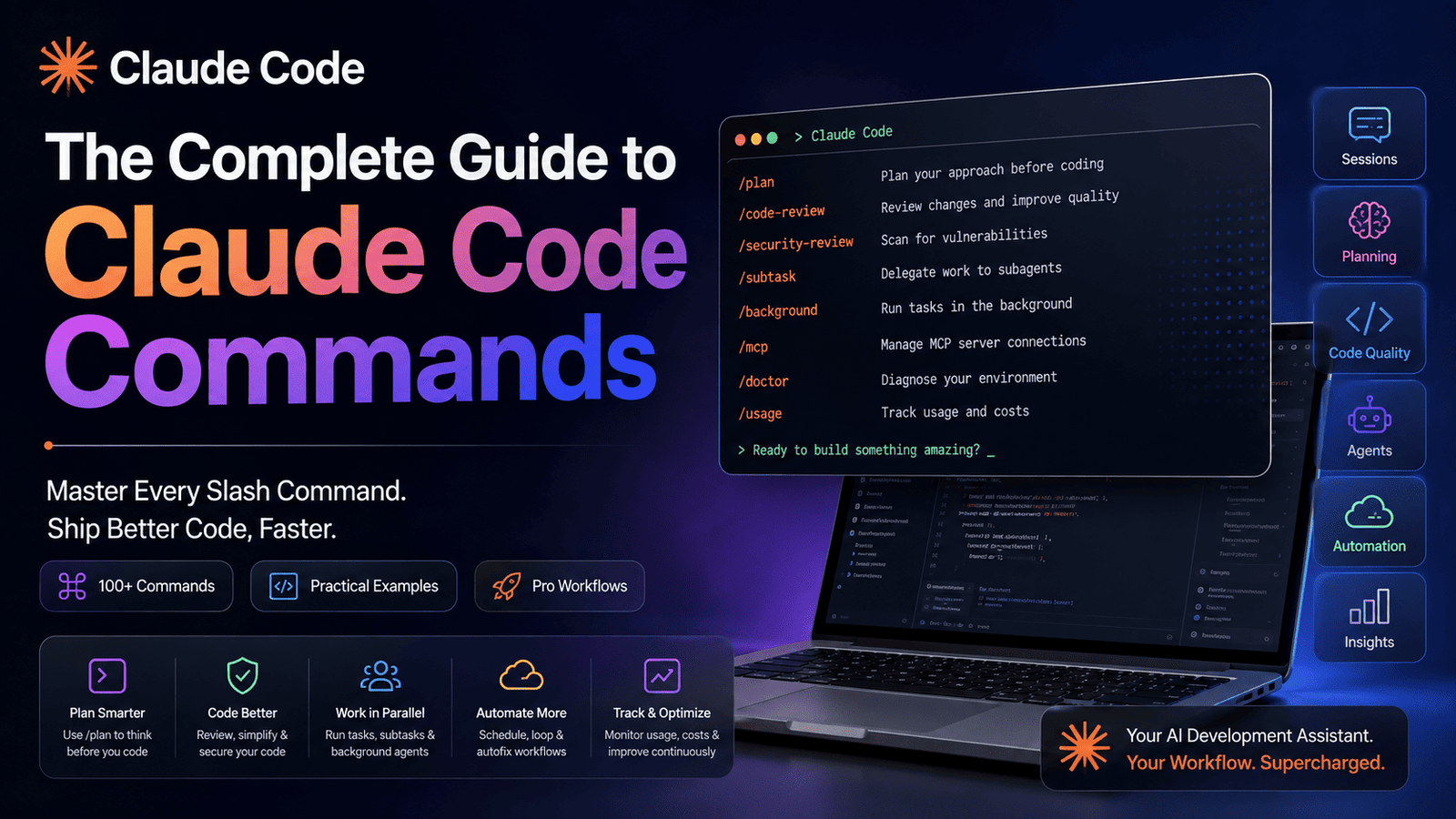
The Ultimate Claude Code Commands Guide: Master Your AI-Powered Development Workflow
Introduction
Claude Code is no longer just a coding assistant that sits inside your terminal and answers questions. It has evolved into a powerful AI development environment with an extensive collection of commands for managing context, planning work, reviewing code, coordinating background agents, integrating tools, troubleshooting problems, and even moving work across devices.
The challenge is not simply knowing that these commands exist.
The real challenge is knowing which command to use, when to use it, and how different commands fit together into an efficient development workflow.
This guide organizes the day-to-day Claude Code commands by purpose, helping you move beyond memorizing slash commands and toward building a faster, more deliberate way of working.
Important: Claude Code includes roughly 100 built-in commands and bundled skills, but availability and behavior can vary by version, platform, plan, and environment. For the exact commands available in your installation, type
/during a live session or run/help.
1. Session & Context Management
AI coding sessions can become long, complex, and cluttered. Claude Code provides several commands designed specifically to help you control the conversation itself.
/clear, /new, and /reset
Use these commands when you want to start fresh.
A fresh conversation clears the active context while preserving your project memory. This is useful when your current task is complete and you do not want old implementation details influencing the next task.
Best use case
You have just completed a major feature and are moving on to something completely unrelated.
Instead of dragging hundreds of previous messages into the next task, start clean.
/clearYou can also give the previous session a name so it is easier to find later.
/compact
Long conversations consume context.
The /compact command summarizes the conversation so far and frees space while preserving important information. You can also provide instructions about what should be prioritized in the summary.
/compact Focus on the authentication architecture and database decisionsWhy this matters
Context management is becoming a serious engineering skill when working with AI agents.
The problem is not simply running out of tokens. Excessive context can make an agent slower, distract it with irrelevant details, and increase the chance that old assumptions influence new decisions.
Use /compact intentionally rather than waiting until your session becomes unmanageable.
/context
Want to understand where your context window is going?
/contextClaude Code can show a visual breakdown of what is consuming context and provide optimization suggestions.
For larger projects, this can help answer an important question:
Is your agent actually focused on the problem, or is your context full of old conversations and irrelevant files?
/rewind, /checkpoint, and /undo
Experimentation is powerful, but sometimes an experiment goes in the wrong direction.
These commands allow you to roll the code or conversation back to an earlier checkpoint.
/rewindThis is particularly valuable when you are exploring multiple approaches to a difficult problem.
/resume and /continue
Need to return to previous work?
/resumeYou can reopen a previous conversation by session ID, name, or through an interactive picker.
This makes it easier to treat Claude Code sessions as persistent workspaces rather than disposable conversations.
/branch
Sometimes you want to explore an alternative without losing the original direction.
/branch experimental-auth-approachThis forks the conversation at the current point.
It is useful for questions like:
- Should we refactor this service?
- Should we keep the existing architecture?
- What happens if we use a different database?
- Is there a simpler implementation?
Instead of committing mentally to one path, branch the conversation and test the alternative.
2. Planning & Code Quality
Writing code quickly is not the same as writing good code.
Claude Code includes commands specifically designed to slow the agent down when necessary and make it think before changing your system.
/plan
The /plan command activates Plan Mode.
Instead of immediately modifying code, Claude proposes an approach first.
/plan Add multi-tenant support to the applicationThis is especially useful for large or risky changes.
A good workflow is:
- Define the objective.
- Ask Claude to investigate the codebase.
- Review the proposed plan.
- Challenge the assumptions.
- Approve the direction.
- Start implementation.
The important discipline here is simple:
Do not confuse fast implementation with good decision-making.
/diff
Use /diff to inspect uncommitted changes and per-turn modifications.
/diffThis gives you a chance to review what actually changed rather than trusting the agent's summary.
/code-review
Claude Code can review your current changes, a pull request, branch, or specific path.
/code-reviewYou can also use options for deeper reviews and automated fixes.
Examples:
/code-review ultra/code-review --fix/code-review --comment pr#123The command can inspect code for:
- Correctness problems
- Potential bugs
- Cleanup opportunities
- Implementation mistakes
For complex changes, review should not be an afterthought. It should be part of the development loop.
/security-review
When a change involves authentication, permissions, user data, APIs, secrets, or external integrations, a normal code review may not be enough.
/security-reviewThis command focuses specifically on security vulnerabilities in the current changes.
/simplify
AI-generated code can become overly elaborate.
The /simplify command focuses on cleanup, redundant abstractions, and unnecessary complexity.
/simplifyThis command addresses a common AI development problem:
The code works, but it is more complicated than necessary.
3. Model & Effort Control
Not every problem deserves the same amount of reasoning.
Claude Code gives you control over the model and effort used for a task.
/model
Switch the active model with:
/modelYou can also configure your preferred model for future sessions.
/effort
Control the reasoning depth:
/effort highAvailable effort levels include:
- Low
- Medium
- High
- XHigh
- Max
- Ultracode
- Auto
The strategic lesson is important:
Use higher effort for decisions, not everything.
Reserve deeper reasoning for:
- Architecture
- Complex debugging
- Security analysis
- Difficult refactoring
- Distributed systems
- Performance bottlenecks
Use lighter effort for simple tasks.
/fast
Need quicker responses?
/fast onFast mode prioritizes speed, although it may be more expensive.
/advisor
The /advisor command allows another model to weigh in at important decision points.
/advisorThis is particularly useful when a task has competing approaches and you want an independent perspective.
4. Project Setup, Memory & Skills
The quality of an AI coding agent depends heavily on how well it understands your project.
/init
Start with:
/initClaude Code can generate a starter CLAUDE.md file containing information about the project.
This helps establish project-level instructions and context.
/memory
Use:
/memoryto work with Claude Code's memory configuration.
This can include:
- Editing
CLAUDE.md - Viewing memory
- Managing auto-memory
- Enabling or disabling stored information
A well-maintained project memory can significantly reduce repetitive explanations.
/agents
Claude Code supports specialized subagents.
/agentsThis points you toward creating and managing subagents in:
.claude/agents/You can create specialized agents for areas such as:
- Testing
- Security
- Infrastructure
- Documentation
- Database analysis
- Frontend review
/reload-skills
When skills or commands change during an active session, use:
/reload-skillsThis rescans the relevant directories so your changes become available without restarting the entire workflow.
/plugin
Manage plugins with:
/pluginYou can list, install, enable, or disable available plugins.
/permissions
AI agents become dramatically more useful when they can safely access the tools they need.
Use:
/permissionsto manage:
- Allowed tools
- Tools requiring confirmation
- Denied tools
The goal should not be to grant unlimited permissions blindly.
The goal should be to reduce unnecessary friction while maintaining sensible boundaries.
5. Git & Pull Request Workflow
Claude Code can participate directly in modern engineering workflows.
/install-github-app
This command helps set up the Claude GitHub App for a repository.
It can also support additional workflows involving Actions and secrets.
/autofix-pr
Imagine a pull request that continues receiving attention after you leave the terminal.
/autofix-prClaude can create a cloud session that watches the branch and responds to:
- CI failures
- Reviewer feedback
- Requested fixes
This moves AI from a passive assistant toward a more autonomous development workflow.
6. Background & Parallel Work
One of the most powerful shifts in AI-assisted development is moving from:
One prompt → One response
to:
Multiple tasks → Parallel execution → Coordinated results
/background
Run work in the background:
/background Investigate the database performance issueThe session can continue while the background work progresses.
/tasks
See active and completed background work:
/tasksThis gives you visibility into what agents are currently doing.
/subtask
Delegate a side task to a forked subagent:
/subtask Find every API endpoint affected by this schema changeThe subagent investigates independently and reports the result back.
This is excellent for parallel research.
/loop
Run a prompt repeatedly while the session remains active.
/loop 10m Check whether the tests are passingThis can support repetitive workflows that would otherwise require manual intervention.
/goal
Set a completion condition:
/goal All failing tests are resolvedClaude continues working across turns until the condition is met.
/schedule
For recurring cloud routines:
/scheduleThis can create, update, list, or run recurring routines.
This opens the door to workflows such as:
- Daily codebase checks
- Repeated test monitoring
- Dependency reviews
- Regular reports
- Scheduled maintenance tasks
7. MCP & Integrations
Modern AI agents are only as useful as the systems they can interact with.
Claude Code includes commands for managing integrations.
/mcp
Use:
/mcpto manage MCP server connections and authentication.
MCP allows Claude Code to connect with external tools and systems.
/chrome
Configure Claude in Chrome settings with:
/chrome/design-sync
For teams with established design systems:
/design-syncThis can upload a repository's React design system so generated designs align more closely with your actual components.
/claude-api
Use:
/claude-apito access API and SDK-related reference material and workflows such as migration and upgrades.
8. Diagnostics & Troubleshooting
When something is broken, guessing is expensive.
Claude Code includes several diagnostic tools.
/doctor
Run a complete environment check:
/doctorThis can help identify:
- Installation problems
- PATH issues
- Unused skills
- MCP configuration problems
- Slow hooks
CLAUDE.mdbloat
Think of it as a health check for your Claude Code environment.
/debug
Need to investigate a specific issue?
/debug My MCP server keeps disconnectingThis enables debugging support for the current session.
/insights
Use:
/insightsto generate an HTML report analyzing recent sessions.
The report can surface:
- Project areas
- Usage patterns
- Friction points
This is especially valuable because the way you use AI can itself be optimized.
9. Cost & Usage
AI-assisted development has a resource cost.
Use:
/usageor:
/costto inspect:
- Token usage
- Cost by model
- Plan limits
- Activity
If you hit a limit, try:
/rate-limit-optionsThe bigger lesson is that cost awareness should influence workflow design.
If you repeatedly use maximum reasoning for trivial tasks, that is not sophistication. It is waste.
10. Remote & Cross-Device Workflows
Development is no longer restricted to one machine.
Claude Code includes commands for moving work between environments.
/remote-control
/remote-control
/remote-controlThis makes a session controllable from Claude's web or mobile interfaces.
/teleport
Use:
/teleportto move a web session into your local terminal.
/desktop
Continue the session in the Claude Code Desktop application.
/mobile
Generate access to the mobile experience.
/list-agents
Use:
/list-agentsto see available subagents, teammates, and other sessions you can communicate with.
11. Quality-of-Life Commands
Not every useful command is about architecture or automation.
Some simply make daily work smoother.
/copy
Copy a previous assistant response:
/copyYou can also target an earlier response.
/btw
Ask a side question without adding it to the main conversation history:
/btw Why does this database index improve the query?This is useful for quick clarifications that should not distract from the main task.
/config
Manage settings:
/configThis can include preferences for:
- Theme
- Model
- Output style
- Other settings
/focus
For a more minimal interface:
/focusThis reduces visual noise and emphasizes the essentials.
/keybindings
Manage keyboard shortcuts:
/keybindings/powerup
Interactive lessons can help you learn Claude Code features directly.
/powerup/release-notes
Browse version changes with:
/release-notesThis is worth checking regularly because AI development tools are changing rapidly.
The Most Important Commands to Learn First
If you are new to Claude Code, do not try to memorize everything.
Start with these:
CommandWhy It Matters/helpDiscover available commands/planThink before changing code/compactControl context/diffReview actual changes/code-reviewCatch implementation problems/security-reviewInspect security-sensitive changes/simplifyReduce unnecessary complexity/subtaskDelegate investigation/backgroundWork in parallel/doctorDiagnose your environment/usageUnderstand resource consumptionMaster these first.
Then expand based on how you actually work.
A Better Claude Code Workflow
Here is a practical development loop:
Step 1: Understand
Start by asking Claude to investigate the codebase.
Step 2: Plan
/plan
/planReview the proposed approach before implementation.
Step 3: Challenge the plan
Ask:
- What assumptions are being made?
- What could break?
- Is there a simpler approach?
- What are the alternatives?
Step 4: Implement
Allow Claude to execute the approved plan.
Step 5: Inspect
/diff
/diffReview the actual changes.
Step 6: Simplify
/simplify
/simplifyRemove unnecessary complexity.
Step 7: Review
/code-review
/code-reviewLook for correctness problems.
Step 8: Secure
/security-review
/security-reviewFor sensitive changes.
Step 9: Delegate
Use /subtask or /background for independent investigations.
Step 10: Preserve context
Use /compact when the session becomes large.