
How to Set Up OpenClaw: The Ultimate Guide to Building Your Own Autonomous AI Agent
Introduction
The world of Artificial Intelligence is evolving from simple chat interfaces to autonomous agents that can perform real-world tasks. One of the most promising tools in this space is OpenClaw (also known as ClawdBot). Unlike standard chatbots that only respond to text, OpenClaw is designed to act on your behalf by connecting to the apps you use every day.
This guide provides a comprehensive walkthrough for setting up OpenClaw from scratch. Whether you want to automate your emails, manage your calendar, or create custom background tasks, this tutorial will help you build a personal AI assistant that works 24/7.
What is OpenClaw
OpenClaw is an open-source autonomous AI agent framework. While traditional AI models require constant human prompting for every step, OpenClaw can take a high-level goal and execute a multi-step workflow to achieve it.
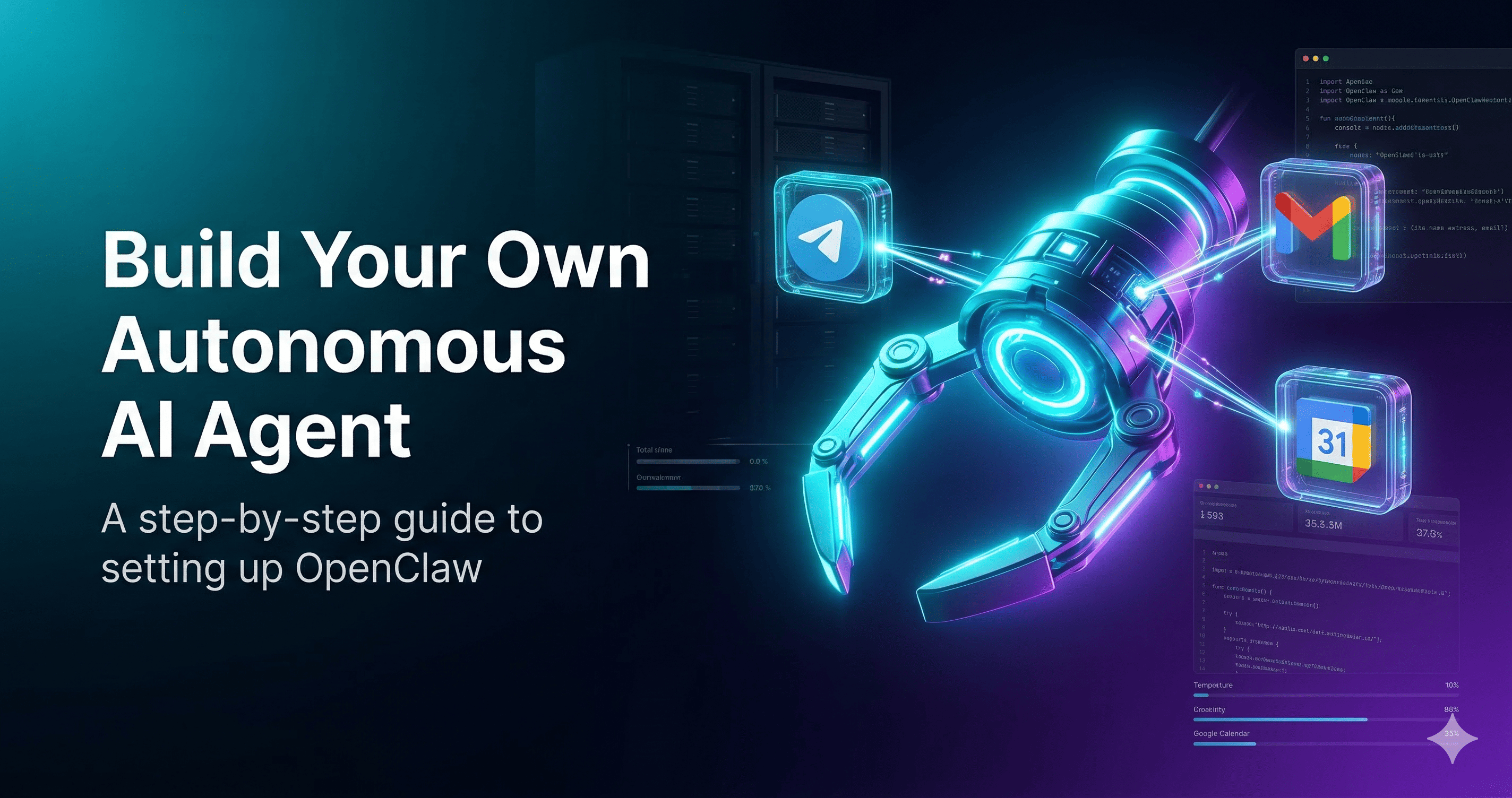
By connecting to third-party tools like Gmail, Google Calendar, and Telegram, OpenClaw transforms from a writer into a doer. It can read your messages, understand your schedule, and interact with various web services to automate complex daily workflows without constant user intervention.
Hardware and Software Requirements
- Dedicated Hosting: A Virtual Private Server (VPS) is highly recommended over local hosting to ensure 24/7 availability.
- AI Model API Key: An API key from a provider like OpenAI, Anthropic, Google Gemini, or xAI to serve as the agent's brain.
- Messaging Account: A Telegram account to control the agent remotely.
- Google Cloud Project: Required if you intend to use Google Services (Gmail/Calendar) skills.
- Basic Technical Literacy: Familiarity with using a terminal and managing API keys.
Step-by-Step Guide to Setting Up OpenClaw
Step 1: Hosting and Installation
OpenClaw handles sensitive data and performs background tasks, so it requires a secure, always-on environment.
Purchase a VPS: Use a provider like Hostinger. A standard VPS plan is usually sufficient to host an autonomous agent.
Initial Setup: In your hosting dashboard, select the option to install OpenClaw.
Secure Your Token: During installation, you will receive an OpenClaw Token. Save this immediately in a secure location; it is the master password for your agent.
Configure the AI Brain: Navigate to your chosen AI provider (e.g., OpenAI) and generate a secret API key. Paste this key into your VPS deployment settings to give the agent its reasoning capabilities.
Deploy: Click the deploy button and wait for the process to finish. You can verify the installation by logging into the OpenClaw web interface and sending a test message.
Step 2: Connecting to Telegram
While OpenClaw has a web dashboard, it is most effective when controlled via a mobile messaging app like Telegram.
Create a Bot: Open Telegram and search for @BotFather. Use the
/newbotcommand and follow the prompts to name your bot and create a unique username.Link the Token: BotFather will provide an API token. Copy this and paste it into the OpenClaw web interface under the Telegram settings.
Authenticate: Open your new bot in Telegram and click Start. The bot will provide an Approval Command. Paste this string back into the OpenClaw web interface to finalize the secure connection.
Step 3: Expanding Capabilities with Skills
By default, OpenClaw is a smart interface. To make it perform actions, you must install "Skills" from ClawHub, a community marketplace for pre-built connectors.
Install Google Services: Search ClawHub for the Google Services (GOG) skill and copy the URL. In Telegram, tell your bot:
Install and set up this skill: [URL].Configure Google Cloud: Go to the Google Cloud Console and create a new project. Set up an OAuth Consent Screen and create OAuth Client ID credentials for a Desktop App.
Enable APIs: Manually enable the Gmail API and Google Calendar API within your Google Cloud project.
Upload Credentials: Download the JSON credentials file from Google Cloud and upload it directly to your OpenClaw bot in Telegram.
Verification: Follow the generated link to grant the agent permission to access your Google account.
Step 4: Adding Media and Document Summarization
You can further enhance your agent's utility by adding the "Summary" skill.
Install the Skill: Find the Summary skill URL on ClawHub and send the installation command to your bot.
PDF Summarization: Once installed, you can upload any PDF to the chat with the caption "Summarize this," and the agent will extract key points.
Video Summarization: Send a YouTube URL to the bot, and it will process the video content to provide a detailed breakdown.
Step 5: Setting Up Scheduled Automations
The final step in creating a truly autonomous agent is setting up background tasks that run without your input.
Define the Task: Send a prompt to your bot describing a recurring task. For example:
Every morning at 8 AM, fetch the top posts from the OpenAI and ChatGPT subreddits and send me a digest.Confirmation: The agent will confirm the logic and schedule the task on the server. It will now execute this workflow automatically every day.
Advantages of OpenClaw
24/7 Autonomy: Because it is hosted on a VPS, the agent works even when your computer is turned off.
Multi-Tool Integration: It acts as a bridge between different platforms like Google, Telegram, and Reddit.
Privacy and Security: Hosting your own instance gives you more control over your data compared to using closed-platform assistants.
Customizability: Through ClawHub, you can infinitely expand what your agent can do by adding or creating new skills.
Limitations and Trade-offs
Setup Complexity: The initial configuration involves several technical steps, including VPS management and Google Cloud setup.
API Costs: While the software is open-source, you still have to pay for the tokens used by the underlying AI models (OpenAI, etc.).
Resource Dependency: The agent's performance is tied to the stability of your VPS and the uptime of the third-party APIs it connects to.
Final Summary
OpenClaw represents a significant shift in how we interact with AI. By moving away from simple chat windows and toward autonomous, skill-based agents, users can reclaim their time and automate the mundane aspects of digital life. By following this guide, you have transformed a raw AI model into a functional personal assistant capable of managing your schedule, filtering your communications, and keeping you informed—all while you focus on more important tasks.