
How to Connect Facebook Graph API to n8n: A Step-by-Step Guide
Introduction
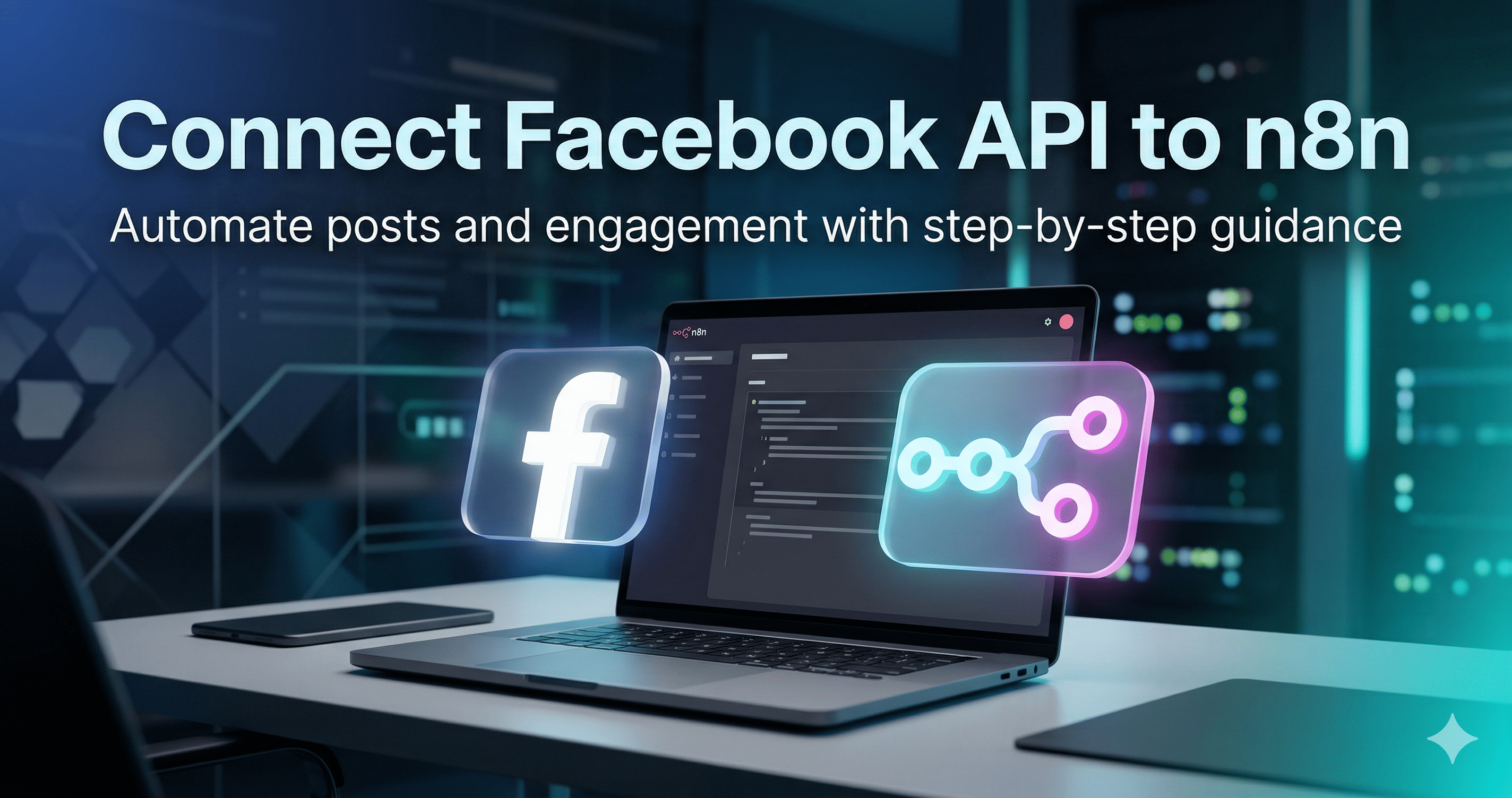
Automating your social media presence can save hours of manual work. By connecting the Facebook Graph API to n8n, you can automate tasks like publishing posts, managing comments, and tracking engagement. n8n is a powerful workflow automation tool that allows you to build complex integrations without writing extensive code. This guide provides a clear, step-by-step path to setting up this connection safely and efficiently.
What is Facebook Graph API and n8n?
Facebook Graph API
The Graph API is the primary way for applications to read and write to the Facebook social graph. It is an HTTP-based API that apps use to query data, post new stories, manage ads, and perform various other tasks.
n8n
n8n is an extendable workflow automation tool. It uses a node-based approach, allowing you to connect different software services and APIs. Unlike many other automation platforms, n8n can be self-hosted, giving you full control over your data.
Requirements
Before you begin, ensure you have the following:
- A Facebook Personal Account.
- A Facebook Business Page (where you have admin access).
- A Meta Developer Account (linked to your Facebook account).
- An active instance of n8n (either cloud or self-hosted).
Step-by-Step Guide to Connecting Facebook Graph API to n8n
Step 1: Create a Meta App
To interact with Facebook's data, you must first create an application in the Meta ecosystem.
- Log in to the Meta for Developers website at developers.facebook.com.
- Navigate to My Apps in the top navigation bar and click Create App.
- When prompted for a use case, select Other and click Next.
- Select Business as the app type and click Next.
- Provide a Display Name for your app (e.g., Connect with n8n). Note: Meta does not allow the word Facebook in app names.
- Optionally, select your Business Portfolio account and click Create App.
Step 2: Configure App Settings and Go Live
For the API to function correctly in a production environment, you must provide basic documentation and switch the app to Live mode.
- In your app dashboard, go to App Settings > Basic in the left sidebar.
- Add a valid URL to the Privacy Policy URL field. If you are testing, you can use a temporary link, but a real policy is required for public use.
- Click Save Changes at the bottom of the page.
- At the top of the dashboard, toggle the App Mode from Development to Live.
Step 3: Generate an Access Token
Access tokens are like temporary passwords that allow n8n to act on your behalf.
- Navigate to Tools > Graph API Explorer.
- In the Meta App dropdown on the right, ensure the app you just created is selected.
- Under User or Page, ensure you are generating a token for the correct Page.
- Click the Add a Permission dropdown and add the following required permissions:
pages_eventspages_manage_postspages_read_user_contentpages_show_list
- Click Generate Access Token. Follow the Facebook prompts to grant permissions to your specific pages. It is recommended to opt-in all current and future pages for easier management.
Step 4: Extend the Access Token Expiry
The token from the explorer is usually "short-lived" and expires in about an hour. To keep your n8n workflow running, you need a "long-lived" token.
- Copy the Access Token you just generated.
- Open the Access Token Debugger tool.
- Paste your token into the field and click Debug.
- Scroll to the bottom and click Extend Access Token.
- This generates a new token valid for approximately 60 days. Copy this long-lived token.
Step 5: Connect Facebook Graph API to n8n
Now, you will input your credentials into n8n.
- Open your n8n interface and create a new workflow.
- Add a Facebook Graph API node.
- Click the pencil icon to edit the Credentials.
- Select Create New Credential from the dropdown.
- Paste your long-lived access token into the Access Token field and click Save.
Step 6: Test the Integration
Verify the connection by sending a test post to your Facebook Page.
- Set the HTTP Request method to POST.
- Ensure the Graph API Version is set to the latest (e.g., v22.0).
- In the Node field, type
me. This tells the API to act as the authenticated entity. - In the Edge field, type
feed. - Click Add Option > Query Parameters and add a parameter:
- Name:
message - Value:
This is a test post via n8n
- Name:
- Click Test Step.
- Check your Facebook Page timeline. If the post appears, your integration is successful.
Advantages of this Integration
Time Efficiency
Automate repetitive posting schedules.
Multi-Channel Management
Sync content across different platforms from one n8n workflow.
Data Centralization
Pull Facebook analytics directly into your own databases or spreadsheets.
Custom Logic
Use n8n's logic nodes to post only when specific conditions (like weather or stock prices) are met.
Limitations
- Token Expiry: Even long-lived tokens eventually expire (usually every 60 days) and must be manually refreshed.
- API Rate Limits: Meta limits how many requests you can make in a specific timeframe.
- Approval Process: For certain advanced permissions, Meta requires an App Review process which can take several days.
Final Summary
Connecting the Facebook Graph API to n8n empowers you to build professional-grade social media automation. While the initial setup involves several steps—including creating a Meta app and managing access tokens—the result is a flexible and powerful system. Remember to monitor your token expiration dates and stay updated with Meta's API versioning to ensure your workflows remain uninterrupted.