
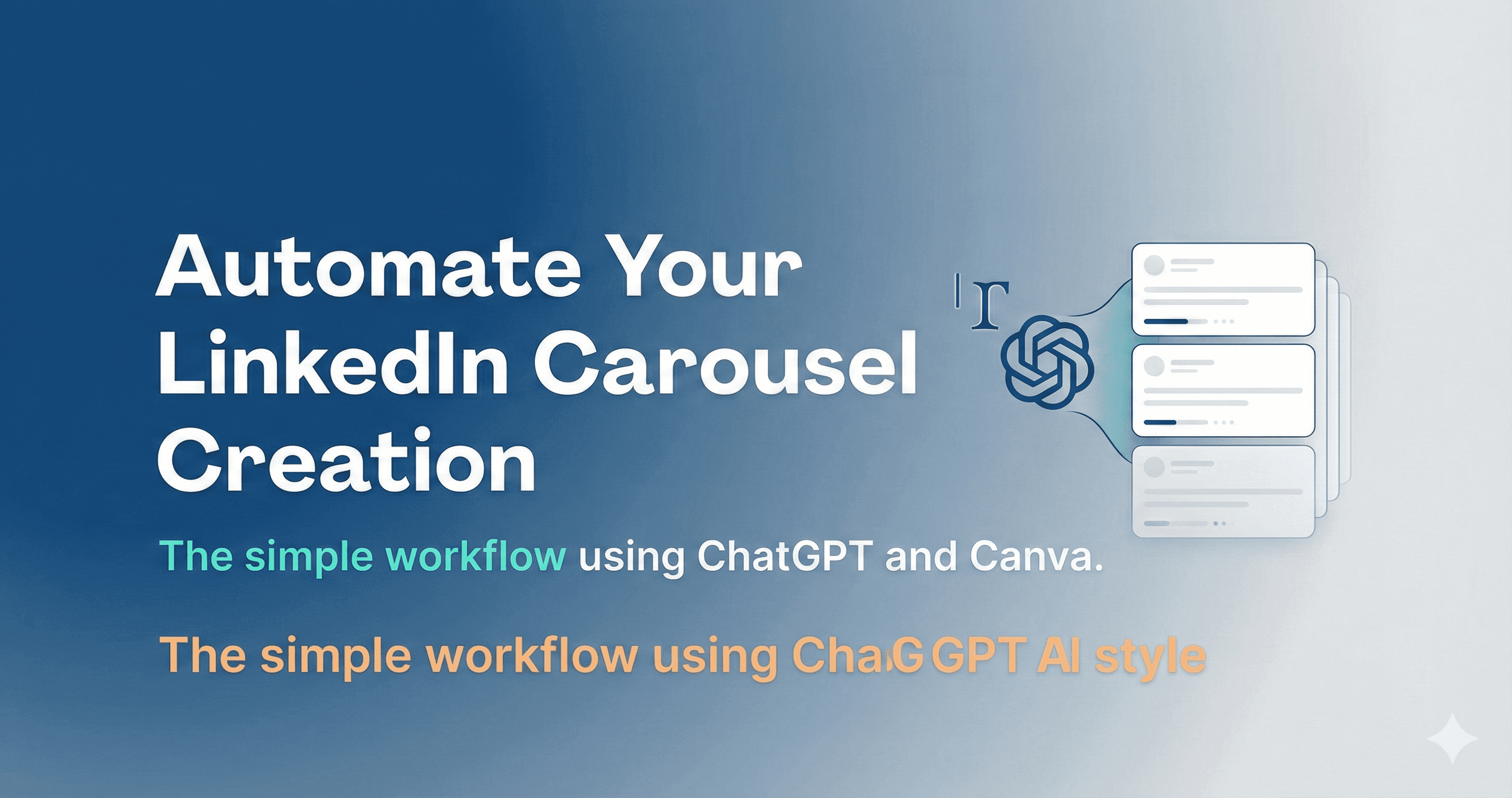
You don’t need advanced design skills or hours of work to create high quality LinkedIn carousels. This guide shows you a simple workflow to write the content and design the slides in minutes using ChatGPT and Canva together.
Enter right workspace
Start in ChatGPT and initiate a fresh chat. Tap the + button, then More, and choose Canvas so you can draft and edit longer content smoothly.
Define carousel structure
Before writing, decide what the carousel must do. This keeps the output focused and usable for LinkedIn.
Key structure to keep in mind:
- Slide 1 sets the hook
- Middle slides teach one idea each
- Final slide tells the reader what to do next
Generate first draft
Ask ChatGPT to write the carousel copy directly in Canvas. Be specific about length and purpose so it fits carousel slides.
Example prompt you can use:
Write a 6-slide LinkedIn carousel about “building authority on LinkedIn.”

• Slide 1: Bold hook that stops scrolling
• Slides 2 to 5: One practical insight per slide
• Slide 6: Simple CTA

Keep each slide under 35 words. Clear, direct language.Refine and tighten content
Read through each slide and polish the wording. This is where you improve clarity and flow. Focus on shorter sentences, one idea per slide, and removing filler words.
Turn copy into visual carousel
Once the text is final, activate Canva from ChatGPT and give a precise design instruction.
Example prompt:
@canva create a 6-slide LinkedIn carousel using this content: [paste slides].

Style: clean and modern, white background, dark text, subtle accent color, large headings.

Do not change the wording.Review design options
ChatGPT will show multiple design variations. Take a moment to compare them.
Look for:
- Readability on mobile
- Clear visual hierarchy
- Enough spacing around text
Fine-tune in Canva
Press the Canva link to open the carousel in the editor. Make small adjustments only if needed, such as font size, alignment, or spacing.
Export in right format
When finished, download your carousel based on how you plan to post it.
- Use PDF for LinkedIn document posts.
- Use PNG if you want to upload slides individually.
Note: Make the hook slide specific and outcome driven. Clear promises perform better than vague or clever wording.